
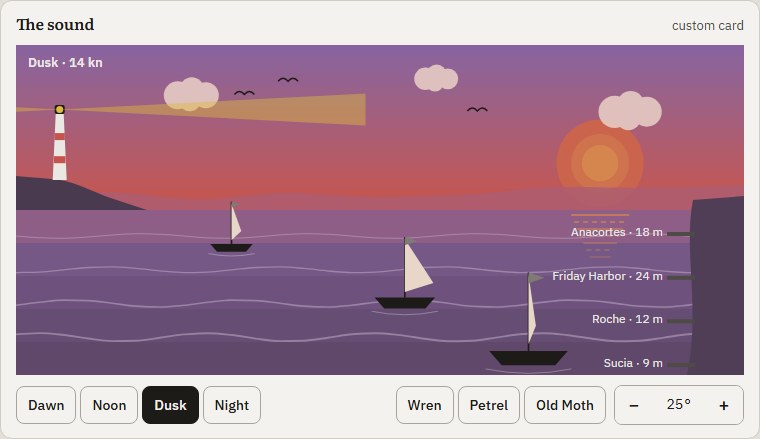
A dashboard's cards are views, numbers and notes. When none of them shows a thing the way you need, a custom card draws it your way. A custom card is one short JavaScript file. The file describes what to draw: a row of words, a bar this long, a button that marks a job paid. The app checks the description, draws it in its own style, and makes every change to your notes.
The code cannot reach anything but what it is given. It has no page, no network and no files. It cannot change a note on its own: a change happens only when a person presses one of its buttons or moves one of its controls. A card is drawn on the app's paper, in its colours and type, so it fits the page.
Add a custom card
Start editing the dashboard
Open the folder's page and select Edit at the upper right.
Open Add
Select + Add. The Add panel opens beside the page.
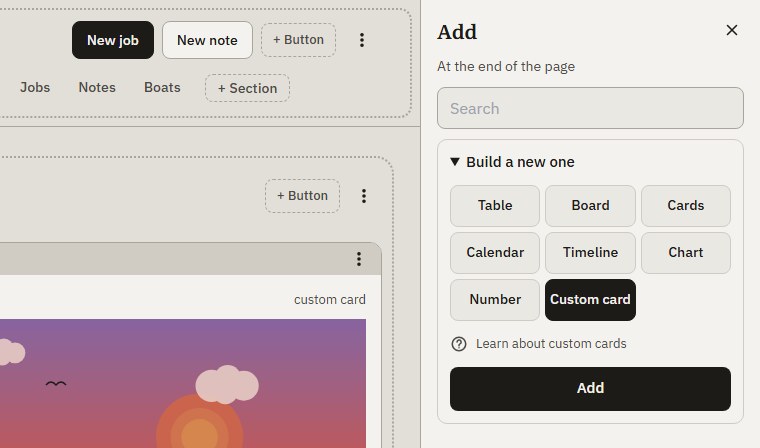
Build a new one
Open Build a new one, choose Custom card, and select Add.
Read and change its code
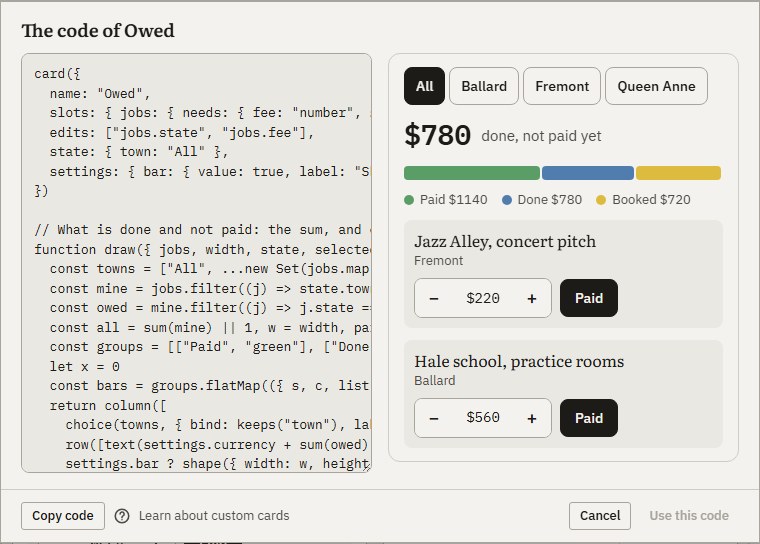
The code opens in a pane of its own. The code is on the left. On the right is the card as that code draws it, on your own notes. Change the code, stop typing, and the card draws again.
- A part drawn wrong shows as a small note in its place. The note names what was wrong, what it takes and what it was:
text: size takes a number from 12 to 96; it was 8. The rest of the card still draws. - A card that stops says why, and the line of its code where it stopped.
- Use this code puts the code on the card. The code it replaced is kept: the next time the pane opens, Put the old code back returns it.
- Cancel changes nothing. Copy code copies what is in the editor.
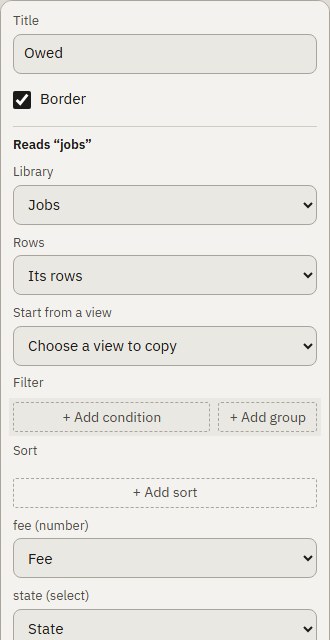
To open the code again later, select Edit, open the card's menu with the ⋮ on the bar along the top of the card, choose Settings…, and select See and change the code at the bottom.
The shape of a card
Every card has two parts. At the top, card({...}) says what the card is. Under it, the function draw is given what the card reads and returns what to draw.
card({
  name: "Owed",
  slots: { jobs: { needs: { fee: "number", state: "select" } } },
  edits: ["jobs.state"],
})

function draw({ jobs, width }) {
  const owed = jobs.filter((j) => j.state === "Done")
  return column([
    text(money(owed.reduce((sum, j) => sum + (j.fee ?? 0), 0)), { role: "figure" }),
    ...owed.map((j) =>
      row([text(j.title, { grow: 1 }), button("Paid", { press: edit(j.row, "state", "Paid"), strong: true })], { key: j.row, gap: 8 }),
    ),
  ], { gap: 8 })
}
draw runs again whenever what it reads changes: a note, the card's width, the page's selection or the card's own state. So write it as a plain function of what it is given.
Read a library
A slot is something the card reads. The code names each slot and the things it needs from each row, with their kinds: number, text, select, date, checkbox, multi-select, relation, person or attachment.
The person who places the card chooses where each slot reads from. Open the card's menu, choose Settings…, and, for each slot:
- Library: the library it reads.
- Rows: all its rows, or only the row selected on the page.
- Start from a view: copies a view's filter and sort into the slot once.
- Filter and Sort: the same editors a view has.
- Each need: the property it reads. Only properties of the kind it needs are offered, and formulas and rollups.
A need can also be read through a relation of the slot: write its kind as "number of boat", where boat is the slot's relation need, and match it in Settings… to a property of the library that relation links to, such as a harbor's depth. The card gets a list, one value for each linked row.
In draw, each slot is a list of rows. A row has row (its handle, for presses and keys), title, and each need by its name. An empty value is null.
Give it settings
Settings are values a person changes beside the card without touching its code. Declare each with its starting value, or describe it:
card({
  name: "Goal",
  slots: { jobs: { needs: { fee: "number" } } },
  settings: {
    goal: { value: 2000, label: "Goal for the week", min: 100, max: 20000, step: 100, suffix: "quot; },
    showList: true,
  },
})

function draw({ jobs, settings }) {
  const sum = jobs.reduce((s, j) => s + (j.fee ?? 0), 0)
  return text(percent((sum / settings.goal) * 100) + " of " + money(settings.goal), { role: "figure" })
}
They show in the card's Settings… as a number, words, a checkbox or a choice. draw is given each setting's value.
Change notes from the card
A card changes only what its code says it may change: the properties in edits, and new rows in the slots in adds. Its Settings… list them under It may change.
- A control, such as
stepper,number,choice,checkorslider, changes a property when it is bound withedits(row, "name"). - A
buttonwithpress: edit(row, "name", value)sets one property of one row. A list of edits,press: [edit(…), edit(…)], makes them all together, or none of them. - A form adds a row: bind inputs with
fills("slot", "name"), and give a buttonpress: save("slot"). - A row can be dragged onto another place to change a property:
drag: take(row)on one box,drop: drop("name", value)on the other. A list of drops changes several at once, such as a person and a day, all of them or none.
Every change goes through the app, as if made by hand, and is in the note's Versions.
Keep its own state
Some things belong to the card alone, such as which town it is showing. Declare them in state, and bind a control with keeps("name") or press set({ name: value }). The card's own state stays on this device. Nobody else sees it, and no note changes.
Draw for any width
The card is given its width in pixels: about 300 on a phone, and much wider on a desk. Draw for the width it is given. row([...], { stack: 480 }) is a row on a wide card and a column on a narrow one.
The card is as tall as what it draws. If you choose its height in its menu, draw is also given height, and can fill it.
Pictures, motion and the pointer
A shape is a drawing of lines, rectangles, circles, paths and labels, with helpers that work out scales, arcs, pies and smooth lines. A part can change on hover and move smoothly from one drawing to the next. A shape can follow the pointer, and a card can ask to be drawn again each frame, for things that move on their own.
Every part, attribute and helper is in the custom card reference.