
Start with the shelf panel visible. It is the list containing All Notes, Bookmarks, Recent, and your shelf’s name. On a small screen, the back arrow at the upper left of an open page takes you back to the shelf.
Capture a thought
Choose New note
Use New note near the top of the shelf panel. The small arrow beside it opens a different menu for starting from a template or a library; use the main button for this first note.
A blank writing page opens. Its title field is above the large writing area.
Write in the body
Select the large writing area below the title and type a sentence. For example:
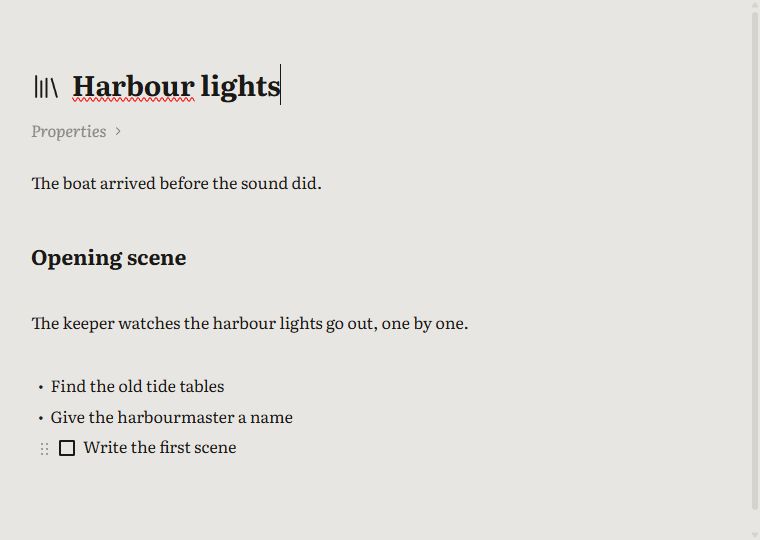
The boat arrived before the sound did.
You can keep writing immediately. There is no Save button to press after each change.
Give the note a title
Select the title field at the top of the page and enter Harbour lights. A title helps you recognize the note in the shelf and in search results.
Give the writing some shape
In the body, leave a blank line after your first sentence. Type ## Opening scene and press Enter. The ## marks a heading; include a space after it.
Write another paragraph, then try this list:
- Find the old tide tables
- Give the harbourmaster a name
- [ ] Write the first scene
The first two lines are bullets. The last is a task with a checkbox. Markdown marks become formatting as you write; the source marks can reappear while you edit them.
Leave and come back
Return to the shelf with the back arrow at the upper left. On a wide screen, the shelf may already be visible beside your note. Expand Recent using its small arrow and select Harbour lights.
The shelf’s sync status concerns sending changes to other devices. You can write before that transfer finishes. For what is available without a connection, see Work offline.